

Your favourite casino games and sports markets don't have to stay on your computer. With the MyStake app experience, you can play slots, follow live odds, check your balance and manage payments straight from your phone.
MyStake works through a mobile website, so you can get started without installing a traditional app. For quicker access, add the site to your home screen and open it with a single tap. Your account, games and payment features stay in one place.
Play MyStake on Your Mobile Device
MyStake works on smartphones and tablets running iOS or Android. Open the website in your browser, and the layout adjusts to fit your screen. You can move between casino games, live tables and sports without switching to a different account.

Mobile Website Experience
The mobile version uses touch-friendly menus to help you browse games, find betting markets and manage your profile. You can scroll through casino categories, open a game or switch to the sportsbook from the main navigation.
There's no need to install updates manually. The latest version of the website loads when you open it, provided you have an internet connection.
A few things can make mobile browsing easier:
- Stable connection. Live dealer streams and in-play betting work best with reliable internet.
- Screen orientation. Some games are easier to view when you turn your phone sideways.
- Account access. Your balance and transaction history stay linked to the same account.
- Browser settings. Keeping your browser updated can help prevent display and loading problems.
If a game stops responding, check your connection before refreshing. For sports bets, check your bet history first to avoid submitting the same selection twice.
Access to Casino Games and Sports Betting
The MyStake casino app experience covers more than slots. You can explore several gaming sections from your mobile browser:
- Casino Slots. Choose from classic reels, video slots and games with bonus features.
- Live Casino. Join real-dealer roulette, blackjack, baccarat and game shows.
- Mini Games and Originals. Try shorter games and titles developed for the platform.
- Sports Betting. Browse pre-match and live markets for football, tennis, basketball and other sports.
- Esports. Check odds and available markets for competitive gaming events.
You can also use Bet Builder on eligible matches to combine several selections into one bet.
Game availability and betting limits may differ by title or market. Open the game information or bet slip to check the details before playing.
How to Use MyStake on Mobile
You can access MyStake directly in your browser or save it to your home screen for faster access later. Both methods use your existing account, so your balance and personal details remain the same.
Open the Website in Your Browser
Start with the official MyStake website. On an iPhone, you can use Safari. Android users can open the site in Chrome or another compatible browser.
Once the page loads, use the main menu to find Casino, Live Casino, Sports or your account settings.
If the page doesn't display properly, try refreshing it or switching to another browser. A slow connection can also affect live games and video streams.
Log In or Create an Account
If you already have an account, select Log In and enter your username or registered email address and password.
New players can register through the mobile sign-up form. You'll need to provide:
- First and last name - enter your correct personal details
- Email address - use an inbox you can access
- Country - select your country of residence
- Account currency - choose from the available options, including GBP
- Username and password - create your sign-in details
- Promo code - fill in this optional field if you have an eligible code
You'll also need to confirm that you're at least 18 and accept the applicable terms.
After registration, you can access your profile and available account features. MyStake may request identity verification before certain transactions, including withdrawals.
Add MyStake to Your Home Screen
You don't need a separate MyStake app download to create a shortcut on your phone. Save the website to your home screen, and you'll have an icon for opening it without typing the address each time.
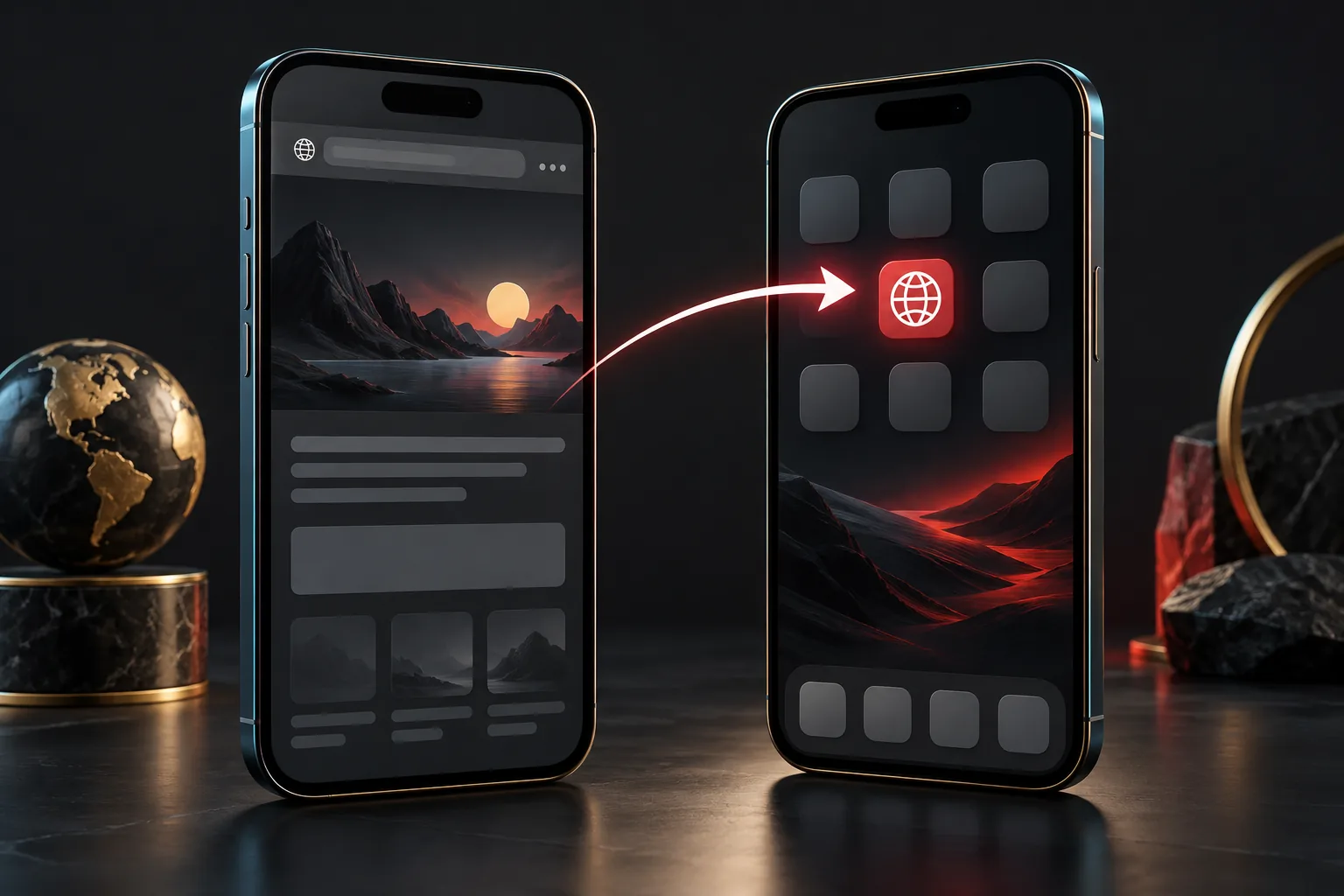
On iPhone or iPad
- Open MyStake in Safari.
- Tap the Share icon.
- Scroll down and select Add to Home Screen.
- Change the shortcut name if needed, then tap Add.
On Android
- Open MyStake in Google Chrome.
- Tap the three-dot menu in the top-right corner.
- Select Add to Home screen or Install app, depending on your browser.
- Confirm the action.
The MyStake icon will appear on your home screen. Tap it to return to the mobile website.
You still need an internet connection, and you may need to sign in again if your session expires. The shortcut doesn't create another account or store a separate balance.
Mobile Play Security
Using MyStake on your phone also means handling personal details and payments on a smaller device. A few checks can help you avoid common problems, especially when switching networks or using a shared phone.
Account Protection
Your MyStake account contains your balance, transaction records and personal information. Protect it with a password you don't use anywhere else.
For safer mobile access:
- Keep your password private. Don't share it through messages or emails.
- Lock your phone. Use a passcode, fingerprint or facial recognition to protect the device.
- Check website addresses. Avoid unfamiliar pages that ask for your account details.
- Sign out on shared devices. Don't leave your account open for someone else to use.
If you notice unfamiliar activity, change your password and contact customer support. You can reach MyStake through live chat if you need help with an account problem.
Secure Payments
MyStake's mobile cashier lets you view the payment methods available to your account. The options shown include Visa, Mastercard, Apple Pay, bank transfer and cryptocurrencies.
Deposits and withdrawals use separate cashier sections. The methods available for one may not be available for the other.
Here are a few things to check before making a payment:
| Payment type | What to check |
|---|---|
| Bank cards | Cardholder details, payment amount and applicable limits |
| Apple Pay | Payment details shown before confirmation |
| Bank transfer | Recipient details and available withdrawal requirements |
| Cryptocurrency | Coin, network and wallet address |
| Withdrawals | Verification status, minimum amount and selected method |
Crypto withdrawals require particular care. For example, when sending Litecoin to your wallet, make sure the address and network match the selected cryptocurrency. A mistake can result in lost funds.
MyStake may also request identity verification before releasing a withdrawal. If the cashier displays Verification Required, select Start Verification and complete the requested checks.
Gambling Control Tools
Mobile access makes it easy to check your account throughout the day, but it's still important to manage your spending and playing time. Set a budget before playing and keep track of your deposits and bets. Take breaks between sessions rather than continuing after a loss.
MyStake provides responsible gambling information and self-exclusion options. You can find these through the website or contact support if you need help restricting your activity.
If gambling starts affecting your finances or daily life, stop playing and seek support. Keeping control of your time and money matters just as much on mobile as it does on a computer.